
Small Business
Customer Follow-Up Tracker in Google Sheets: A Simple Template for Solo Businesses
Get free customer follow-up tracker files to import into Google Sheets, or build a simple tracker with statuses, next actions, due dates and a daily review routine.
A customer asks for a price on WhatsApp, another requests availability on Instagram, and a third says they will decide next week. A customer follow-up tracker in Google Sheets gives you one place to record what happens next.
The useful part is the next action and its date. A contact list with names and phone numbers still leaves you searching old conversations to decide whom to follow up with.
This guide provides free tracker files and explains a simple one-tab alternative you can build yourself. Google’s documentation was checked on October 25, 2026. The shared CLEAN files’ Drive access was checked, but conversion and live recalculation in Google Sheets have not yet been tested. There are no affiliate links.
Get the Free Customer Follow-Up Tracker Files
- Open the CLEAN customer follow-up workbook on Google Drive (.xlsx).
- Browse the CLEAN workbook, DEMO workbook and user guide.
Choose CLEAN for your own records and DEMO to see the example version. Read the included USER_GUIDE.md before entering data. These shared Emerald files are Excel workbooks, rather than native Google Sheets copy links.
To use one in Google Sheets, download your chosen workbook and upload it to your own Drive. Open your uploaded file in Google Sheets and choose File → Save as Google Sheets, following Google’s Excel conversion instructions. Keep the personal copy Restricted. Check dates, formulas, dropdowns, filters and charts after conversion before entering real customer details.
The cell addresses and formulas later in this guide describe the optional manual one-tab build. They are not replacement formulas for the supplied Emerald workbook; use its own layout and user guide when working with the download. No conversion, signed-out download or native copy/recalculation test is claimed here.
What This Customer Follow-Up Sheet Does
Use one row for each enquiry, with its source, current status, next action and follow-up date. A calculated flag shows whether a planned action is overdue, due today or scheduled later. Missing scheduling details get a separate setup flag.
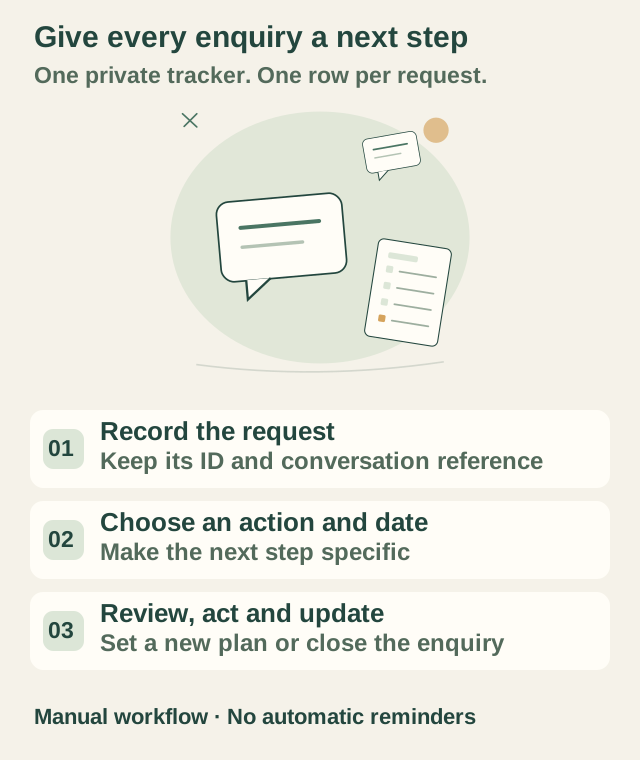
The sheet does not import WhatsApp chats, send email sequences, confirm orders or reconcile payments. You enter and update the information yourself. If you need assigned tasks across a team, automatic reminders or different permissions for individual customer records, check whether a dedicated CRM fits better.
Anyone with a Google Account can create spreadsheets, according to Google’s Sheets overview. This setup uses ordinary sheet features and needs no paid add-on.
Optional: Build a Simple One-Tab Tracker
Create a tab called Follow-ups. Leave room above the table for a review date and three counts: Overdue, Due today, and Needs setup.
| Column | What to record |
|---|---|
| Enquiry ID | A permanent reference such as ENQ-001 |
| Enquiry date | When the request arrived |
| Customer reference | The name or reference used in the original conversation |
| Contact | Enough information to find and contact the customer |
| Source | WhatsApp, Instagram, Website form, Email, Phone, Referral, Walk-in or Other |
| Request | A short description of the product or service |
| Status | New, Contacted, Quoted, Waiting for customer, Won, Lost or Do not contact |
| Last contacted | The date you actually last contacted them |
| Next action | A specific action you can take |
| Follow-up date | When you plan to take or review that action |
| Notes | Brief factual context |
| Action flag | A formula result, rather than another manual status |
Use one row per enquiry rather than adding a row for every message. If the same customer returns with a separate request, assign a new enquiry ID. Keep IDs with their records when sorting; a row number is not a permanent reference.
Format contact numbers as plain text so country codes and leading zeroes remain intact. Use real date values for the date columns and an unambiguous display such as 25 Oct 2026.
Add Status Choices and a Next Action
Select the Source and Status entry ranges and create single-selection dropdowns through Data → Data validation. Set invalid values to be rejected so “Quoted” and “Quote sent” do not accidentally become separate statuses. Google explains these options in its dropdown guide.
Treat New, Contacted, Quoted and Waiting for customer as active. Each active record needs a next action and a date. “Waiting for customer” can mean “Review whether they replied on Tuesday”; it does not require repeated messages.
Won, Lost and Do not contact close the sales enquiry. An old follow-up date should not keep those records in the due list. When a customer asks you to stop contacting them, record that status and stop outreach. A won enquiry may still need an order or delivery workflow elsewhere.
Write next actions you can understand without rereading the conversation:
- “Send the revised quote for two poster sizes.”
- “Ask which cupcake pack size is needed.”
- “Review whether the customer replied about the appointment.”
“Follow up” alone gives you less help when you open the list several days later.
Formulas for the Manual One-Tab Version
For the layout below, put headers in row 8 and prepare records in rows 9–508. Columns A:K hold the inputs in the order above; column L holds the flag. In B3, enter:
=TODAY()
Use File → Settings to check the locale and time zone. For a business working on Indian dates, use India and Kolkata / GMT+05:30. Google documents the location and calculation settings. TODAY() reflects the date at the last recalculation; see its function reference.
Put this in L9 and fill down through L508:
=IF(COUNTA(A9:K9)=0,"",IF(A9="","Add ID",IF(OR(G9="Won",G9="Lost",G9="Do not contact"),"Closed",IF(G9="","Set status",IF(OR(I9="",J9=""),"Plan follow-up",IF(NOT(ISNUMBER(J9)),"Check date",IF(INT(J9)<$B$3,"Overdue",IF(INT(J9)=$B$3,"Due today","Scheduled"))))))))
The formula leaves empty rows blank and asks you to fix missing IDs, statuses, actions or dates before showing a due flag. Closed enquiries stay closed even if their old date is in the past. A non-date text entry gets Check date; use date validation to prevent it during normal entry.
The flag checks scheduling details. It does not confirm that a contact number is correct, that a quote was accepted or that two enquiries have different IDs. Check those separately.
For Overdue in E3 and Due today in H3, use:
=COUNTIFS($L$9:$L$508,"Overdue")
=COUNTIFS($L$9:$L$508,"Due today")
For Needs setup in K3, use:
=COUNTIFS($L$9:$L$508,"Add ID")+COUNTIFS($L$9:$L$508,"Set status")+COUNTIFS($L$9:$L$508,"Plan follow-up")+COUNTIFS($L$9:$L$508,"Check date")
These counts cover the full prepared range, including filtered-out rows. The formula syntax follows Google’s COUNTIFS reference. If you extend beyond row 508, extend the formulas, counts, validation and filter range together.
Filter the List for Your Daily Review
Select A8:L508 and create a filter. In Action flag, select Overdue and Due today to see planned actions needing attention. Check setup flags separately so an enquiry without a date does not disappear from your routine.
Sort through the full table range so customer references, notes and dates move together. Google describes filters and saved filter views; filter views are useful if collaborators need different views of the same sheet.
You can highlight Overdue in red and Due today in amber using conditional formatting. Keep the text labels visible, too. Colour should help you scan the list rather than carry the only explanation.
A Fictional Example
Assume the review date is October 25, 2026:
| Enquiry | Status | Next action | Follow-up date | Flag |
|---|---|---|---|---|
| DEMO-001: logo quote | Quoted | Ask whether the quote needs changes | 24 Oct | Overdue |
| DEMO-002: cupcakes | Waiting for customer | Ask which pack size is needed | 25 Oct | Due today |
| DEMO-003: tuition | Contacted | Send available appointment times | 27 Oct | Scheduled |
| DEMO-004: website update | New | Not entered yet | Not entered yet | Plan follow-up |
| DEMO-005: poster design | Won | No sales follow-up needed | Old date: 23 Oct | Closed |
The first two records count as due actions. The website enquiry needs a plan before its date can be assessed. The won enquiry stays out of the due list.
A Daily Routine You Can Maintain
- Open the sheet and confirm the review date is current.
- Fix Needs setup records and any duplicate IDs or missing customer details.
- Review overdue and due-today actions against the original conversation.
- Take the appropriate action, then update Last contacted if you actually made contact.
- Set the next action/date or close the enquiry. Do not leave an old date as though the action were still pending.
Choose follow-up timing based on the conversation and what you agreed with the customer. A requested callback on Friday should not turn into a daily sales message.
Keep Customer Details Private
Keep the working tracker restricted to the people handling enquiries. Public template sharing and customer-data sharing are separate decisions. A free template should contain only fictional examples; make your own private copy before entering real contacts.
Google’s Drive sharing guide explains Viewer, Commenter and Editor access. If you share a template for others to copy, use a separate clean file with Viewer access and copying enabled. Do not make the live customer sheet publicly editable.
Range protection can help prevent accidental formula changes, but Google explicitly says it is not a security measure. Review file permissions and keep unnecessary personal information out of the sheet.
Test Before Using Real Enquiries
Try a blank row, an enquiry without a next action, yesterday/today/tomorrow dates, each closed status and a duplicate ID. Change a due enquiry to Won and confirm it leaves the due count. Sort the full table and check that IDs, notes and dates stay together.
If you share a template, open its viewer link while signed out, then make a copy from a separate signed-in account. Verify that the copy can be edited and the original master stays unchanged. Native Google Sheets, copying and sharing tests remain necessary before offering a copy link from this guide.
FAQ
Is Google Sheets enough for customer follow-ups?
It can suit a solo business that needs a shared structure for manual enquiry tracking. Choose a different system when you need automatic reminders, contact histories across a team, access by individual record or integrations the sheet does not provide.
Will this send reminders or WhatsApp messages?
No. The flags update when the spreadsheet recalculates. You must open the list, review it and take the action yourself.
Can I use it without a paid CRM?
Yes. The described layout uses standard spreadsheet formulas, dropdowns and filters, with no paid add-on. It does not include the automation or permissions of a CRM.
How do I get the tracker into Google Sheets?
Use the Drive links near the start of this guide to get the CLEAN or DEMO Excel workbook. Upload your own copy, open it in Google Sheets and save it in Sheets format. These are .xlsx resources, so the links do not open a native Google Sheets “Make a copy” screen. You can also build the simpler one-tab version using the instructions here.
What happens after a customer accepts the quote?
Mark the sales enquiry Won and move fulfilment into your order or task workflow. Keep the enquiry reference with the order so you can find the original conversation.